Table of contents
# 24-hour live broadcast using Linux
TL;DR / [Geek Summary]:
- Compute Democracy: Repurpose old Android phones into 24/7 streaming servers using Linux Deploy or Termux.
- Core Engine: Deploy FFmpeg as the stream pusher combined with Screen for background persistence and crash recovery.
- Traffic Optimization: Tailor RTMP scripts for platforms like Bilibili and YouTube for low-power, “digital life” style continuous broadcasting.
The methods in this article are prohibited from being abused.
Please read the video website TOS before use, and do not violate the video website discipline.
# 24-hour live broadcast using Linux
Materials:
A mobile phone and an unlimited network
If you have any questions, please ask in the comment area
# Install Ubuntu (required)
# 24-hour live broadcast on mobile phone
Power saving and quietness are lower cost than cloud servers
# LinuxDeploy (root permission required)

linux deploy When setting up the environment, I consulted a lot of information on the Internet and felt that the performance of the mobile phone as a Linux server was unsatisfactory. (But it is enough for live broadcast)
If you are a beginner in Linux, using a mobile phone as a server to learn is a good choice (encounter problems and then solve them). There are very few phones on the market that can be rooted (if your phone is OnePlus or Xiaomi, you can try rooting)
# Rootable phones
All Xiaomi Redmi models: Xiaomi Redmi phones have always supported the official unlock BL (usually unlocked in 7 days). After unlocking BL, you can flash the phone to get root operations, etc. Xiaomi’s unlock BL is also the most magical, supporting WeChat Alipay fingerprint payment, which is perfect.
Samsung/OnePlus/Realme/Lenovo/Asus ROG models These 5 major models also support the official unlock BL. Generally, the official provides unlocking methods, which are the fastest and do not require waiting. Some are unlocked by unlocking commands, and some are unlocked by official unlocking tools. After unlocking BL, it still supports playing with the phone and flashing operations, but after the above models unlock BL, the system no longer supports WeChat fingerprint payment, and must rely on the mask fingerprint module, or lock BL
Nubia Red Magic/Meizu/Black Shark/LG models The above 5 models do not support official unlock BL, so unlocking BL and flashing the phone depends entirely on developers. Fortunately, the above models can basically be unlocked and flashed by the official BL, and then get perfect root, etc. Unofficial unlocking of BL may cause the phone to lose its warranty function. Friends who hope to get warranty need to flash back to the official system before warranty, and then re-lock BL. OPPO models that can be deeply tested. There are not many OPPO models that can be rooted at present, and they all need to pass the official deep test. There is currently no unlocking and rooting method for models that are not officially open for deep testing. It is known that only these models can apply for testing, and the application time is the 1st or 15th of each month. Users who need to unlock root should apply in time. Unlocking BL will cause data to be cleared. Please back up your data before flashing. Fingerprint payment will also become invalid, the same plus model
Support Find X/R17 Pro/Reno/Reno Ace/Find X2 series/Ace2/Reno3 series/R17 full network/K1/K3 /K5/R15x official version/Reno4, Reno4 Pro, Reno4 SE 5G/Reno5 Pro+, Reno5 Pro, Reno5
Root is not standardized and becomes bricked two lines of tears
Issues and summary to pay attention to when using:
~~ In the Linux Deploy settings, the BusyBox installation path needs to be set in Path (default /system/xbin)~~ BusyBox can’t be opened after installation
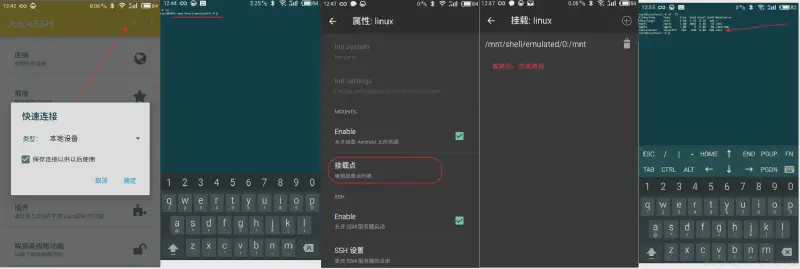
When enabling the permission to mount resources on Android, pay attention to the mount point name. The name in the document is inconsistent with the name used by your own mobile phone (you can view it through the file management tool)
Download network speed is a hard flaw. When installing the system, the foreign server connected may time out for download
Do not download apk from the app store, go directly to github and download the latest apk
The above problems may cause ssh and other services to fail to start and cannot be used normally.
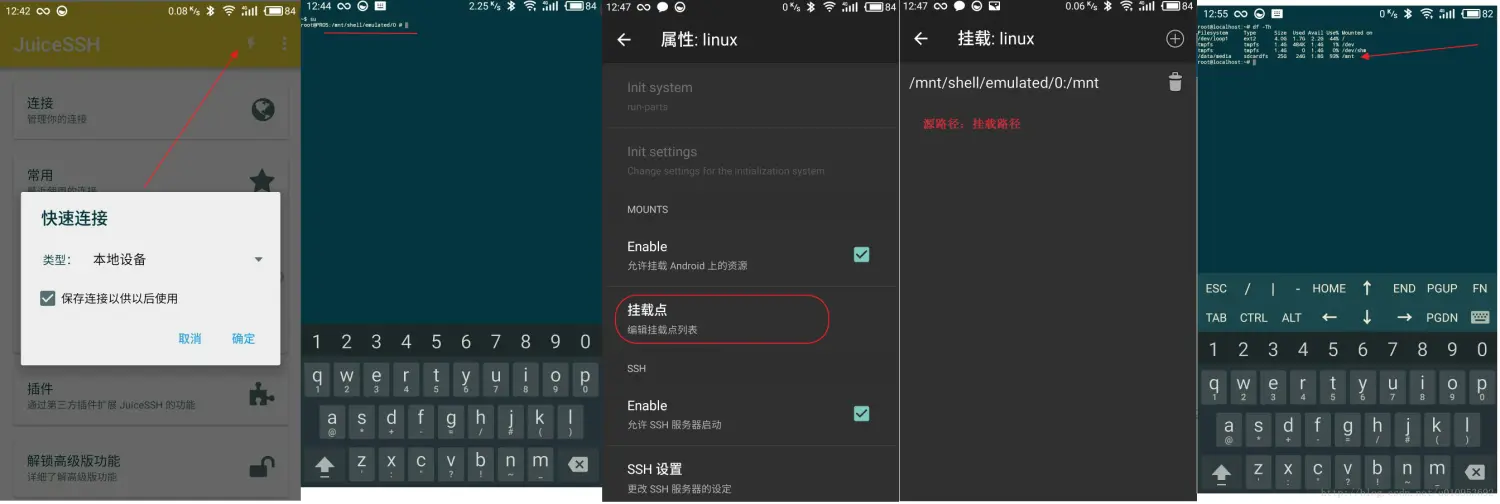
SD card mounting example
# Use environment
Download Xshell
A rooted mobile phone
A computer
Use ssh to access linux deploy
# Front-end server installation instructions
# Install BusyBox app on mobile phone
https://github.com/meefik/busybox/releases
Application interface, select install (use default configuration/system/xbin) Please try it yourself. If it fails, reinstall Linux Deploy
# Install linux deploy on mobile phone
Releases · meefik/linuxdeploy · GitHub
# Modify linux deploy configuration
linux In the deploy interface, select the icon in the upper left corner - Configuration:
| Properties | Configuration |
|---|---|
| Screen always on | Select |
| Lock Wi-Fi | Select |
| CPU wake-up | Select |
| PATH variable | Same as the configuration in BusyBox /system/xbin |
After modification, select “Update environment” and save the configuration.
# Modify Linux installation properties
Linux deploy interface, select the icon in the lower right corner:
| Properties | Configuration | Description |
|---|---|---|
| Release version GNU/Linux | Ubuntu | Ubuntu is the easiest to install |
| Architecture | arm64 | You can view the mobile phone CPU architecture through the icon-status in the upper right corner of Linux deploy |
| Release version | Default | |
| Image size | 4096 | Supports up to 4096MB |
| File system | ext4 | Keep default |
| User name | root | Used when logging in with ssh |
| User password | Set it yourself | English uppercase and lowercase letters and numbers |
| Localization | zh_CN.UTF-8 | Chinese package is enough |
| Enable Allow the use of initialization system | Disable | |
| Enable and allow resources on Android to be mounted | Select | Mount it yourself according to the above method |
| Mount point list | /mnt/sdcard:/mnt | Source name: mount point name |
| Note: The name may be different for different phones, you can view it through the MT file viewer | ||
| Enable SSH server | Select | Default |
# Install Ubuntu
linux deploy icon in the upper right corner-install
# Install dependencies
| |
Just press Y
# Termux (universal method without root)
Note in advance that this method has weaker performance
Run FFmpeg on Android with Termux and Ubuntu 22. However, it requires setting up a lot of commands manually, be careful not to skip any steps. Note that this may take 10 to 20 minutes or more, depending on your technical knowledge level. Internet speed and CPU speed.
# Installation
# Termux
Warning
The Play Store version of Termux is outdated and unsupported, do not use it, use the Github one opens in a new window
Go to the Termux Github latest version opens in a new window
, download debug_universal.apk, unzip it and run it.
Tips
**If your file manager does not allow you to run APK files, install and use
MT File Managerand allow it to install third-party apps when requested. **
IMPORTANT WARNING
**Once you have Termux installed, open it, pull down the Android menu to notifications, in the Termux notification, drag down until you see the following option:
Exit | Acquire wakelock, clickAcquire wakelockand allow Termux to have battery optimization exclusion permissions when asked. If you don’t do this, your performance will be much worse and Termux may be killed by Android while running in the background! **
# Install Ubuntu 22.04
For installing Ubuntu 22. In Termux, you will need wget and proot, we will install them in the next step.
Once you have Termux installed open and run the following commands (in order):
pkg updatepkg upgradepkg install proot wget
Tips
If you are asked to press Y/N during the update/upgrade command, just type Y and press Enter
You will then need to download the installation script using the following command:
| |
Once the script has downloaded run it:
| |
You will then be asked a question, type Y and press Enter.
Once the installation is complete, you can start Ubuntu with:
| |
# Install dependencies
First, we need to update the APT package manager repository and install dependencies.
To update the APT repository, runRun the following command:
| |
After completion, we need to install the dependencies, the command is as follows:
| |
# Introduction to FFmpeg
FFmpeg is a very powerful command line utility that can run on Linux distributions, Windows, and macOS, and supports multiple architectures. FFmpeg is written in C and assembly language, with powerful performance and cross-platform support.
# FFmpeg Installation
On Linux distributions such as Ubuntu, FFmpeg is relatively simple to install. Open the terminal and run the following command to install it.
# Ubuntu and similar distributions
| |
After FFmpeg is installed, you can enter the following command to check whether the installation is successful.
| |
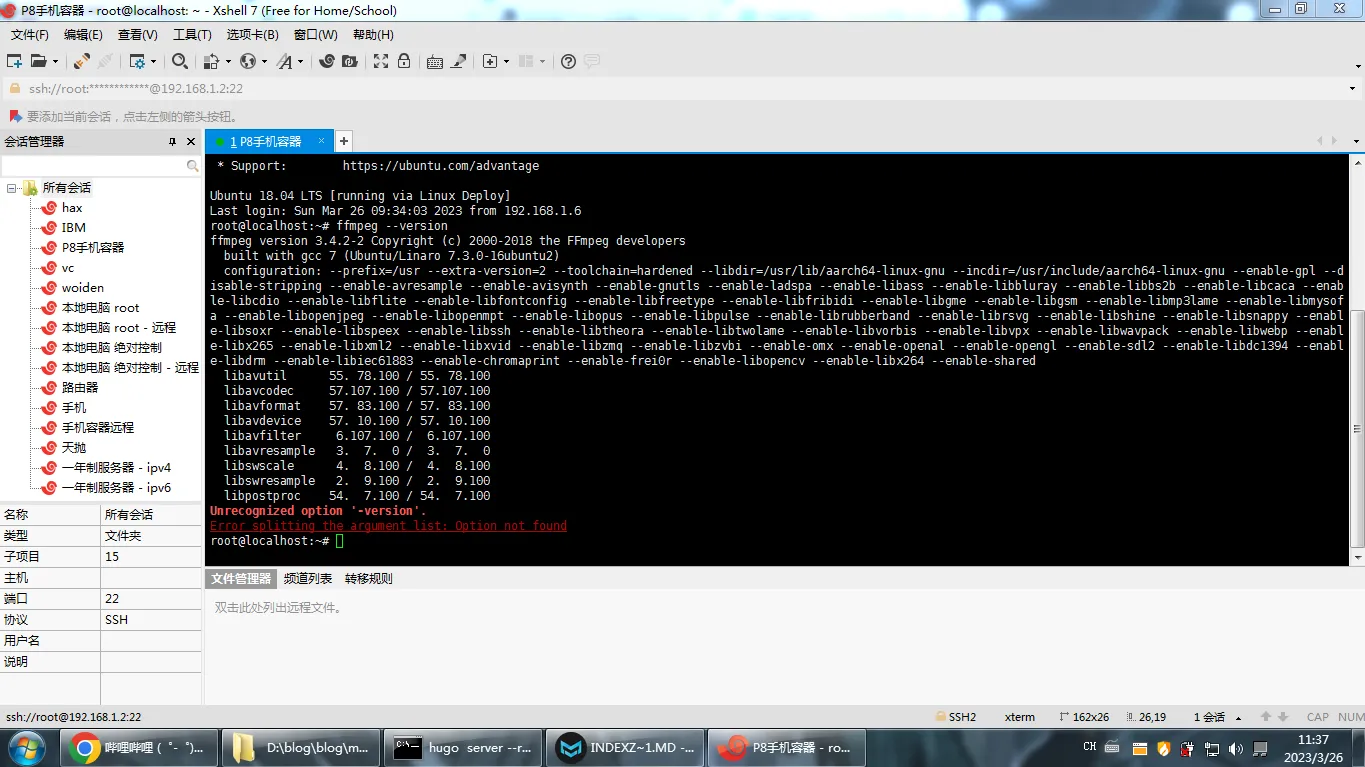
# File transfer
This is very important for whether your live broadcast can be opened
You need to install Xftp
Then you will find an Xftp button on the far right. Click it (you must connect to SSH to use it)
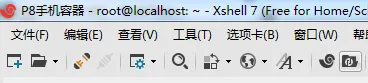
linuxdeploy The path is like this
| |
And Termux needs to install SSHD to use SFTP
| |
Run after installation
| |
Set password
| |
Query the mobile phone ip, based on the actual mobile phone ip
| |
Query the current user
| |
Confirm the listening port of the ssh service
| |
The default SSH port is the 8022 port of this phone
The default path is here
| |
# Preparation before starting the live broadcast
Youtube preparation
You cannot broadcast copyrighted content on Youtube live broadcast (in simple terms, it means things that are popular on Youtube)
For example, the content of my live broadcast is Ding Zhen, so it’s okay
Those who are capable can click on the link to watch Snow Leopard live broadcast doge
I Got Smoke Ding Zhen Infinite Loop 24H*7Days - YouTube
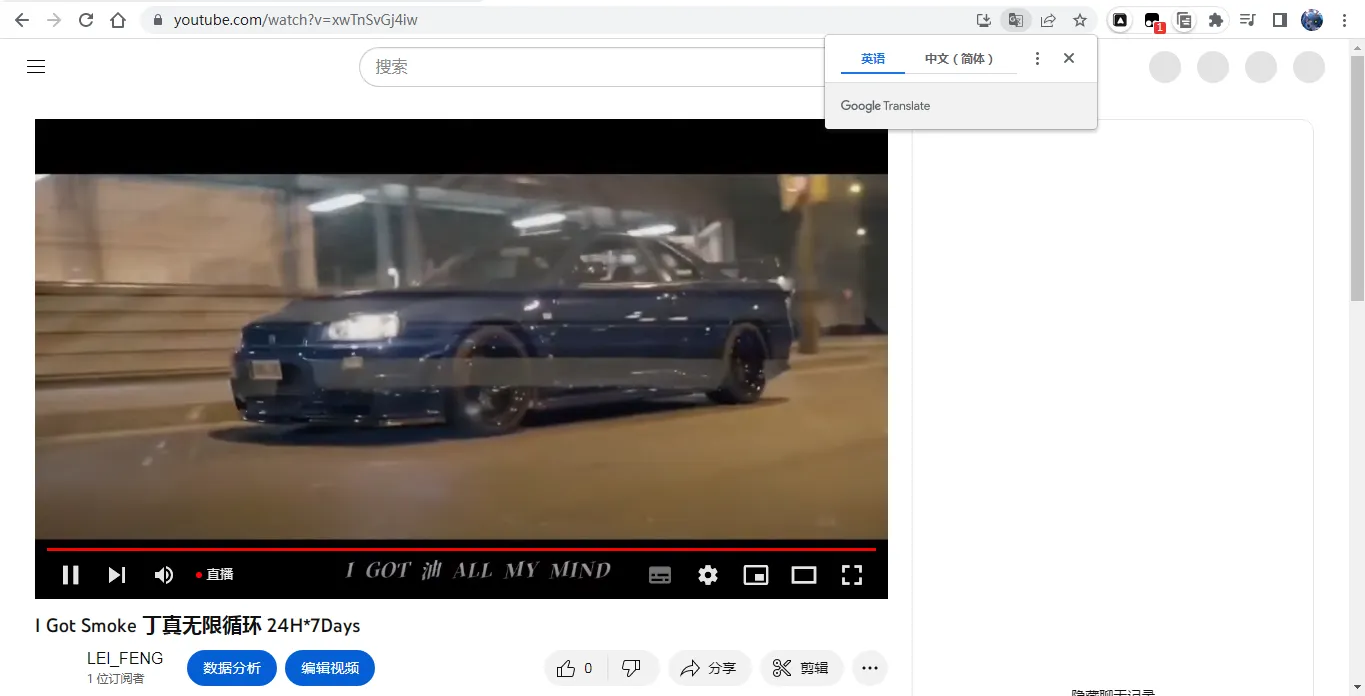
Youtube live broadcast is too difficult for you
# Bilibili Live
Account requires real name (18 years or older)
IP address needs to be in mainland China
Those not in mainland China can use Guiyan Accelerator (Search by yourself)
https://live.bilibili.com/24595202
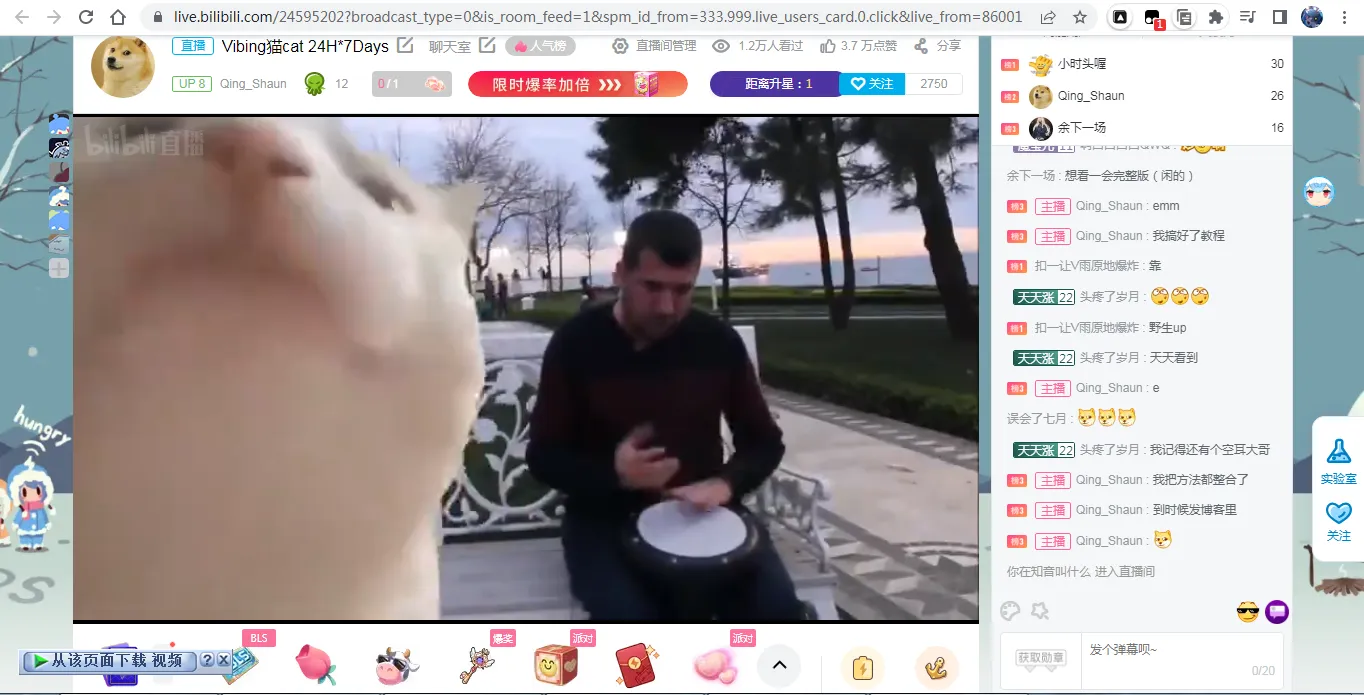
If you meet these conditions, please continue reading
# Live script
Please encapsulate the following content into .sh format For example:
535ir.sh
Create a folder
| |
Enter the folder
| |
Add script
| |
If you don’t have NANO, install it
| |
# Youtube live script
| |
# Bilibili live script
| |
# Run live
Add a virtual terminal
| |
| |
Return to the virtual terminal
| |
Exit from the virtual terminal
| |
If you encounter any problems, please search for related issues on Bing
Or ask questions in the comment section