Table of contents
TL;DR / Geek Summary:
- System restoration guide for iPhone 6 using
i4Toolsto recover from APT package manager crashes.- High-level workflow covering DFU/Recovery entry, firmware selection, and “Smart Flash” execution.
- Warning on Apple’s firmware signing window; underscores the criticality of pre-emptive SHSH2 blobs backup for downgrade capabilities.
# Methods to Refresh iPhone Firmware
I created this tutorial because an APT package manager crash occurred after I installed a plugin post-jailbreak.
# The Mainline of This Tutorial Series
This article is part of a series. If you’re coming from a search engine, you might be interested in other tutorials in the main directory.
# Step 1 - Download i4Tools
# Step 2 - Install i4Tools
Click next until the icon below appears on your desktop or start menu, then open i4Tools.

# Step 3 - Connect iPhone 6
This step may involve whether your charger supports data transfer and whether the data interface is corroded.
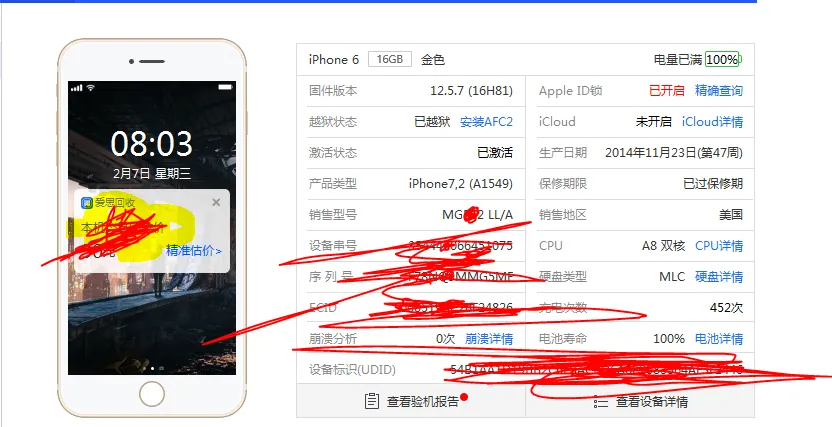
Successful connection is shown below:
# Step 4 - Go to the Flashing Tab
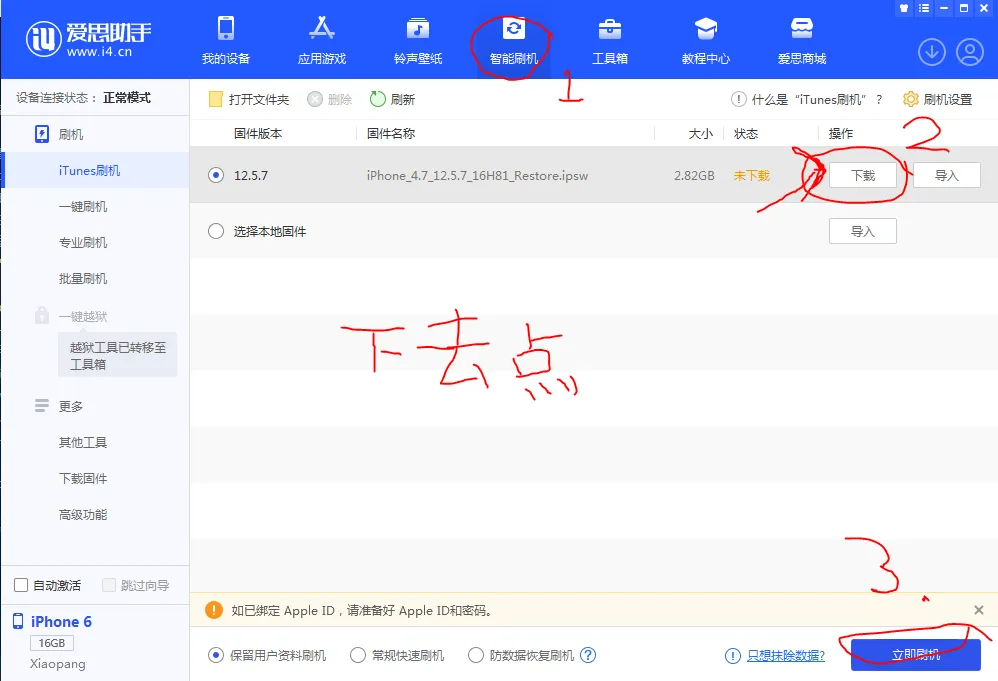
- Click “Smart Flash”.
- Click “Download”.
- Click “Flash Now”.
# Conclusion
Besides the latest firmware, you can also use older firmware, but this requires you to have backed up SHSH2 in advance. Apple officially doesn’t want you to downgrade your system because it increases the risk of jailbreaking. Therefore, you need to backup SHSH2 beforehand—specifically for the system version you can last jailbreak. This is because the jailbreakable version will be immediately replaced with the latest version after you flash your phone.
Flashing is also a way to wipe traces of a jailbroken phone.