
Table of contents
# Using i4 Tools to Fully Back Up iPhone 6 Data + Backup File Analysis
TL;DR / Geek Summary:
- Insurance Strategy: Comprehensive iPhone 6 backup using i4 Tools (iTunes-based wrapper).
- Data Analysis: Deep dive into full vs. selective backups and encrypted local data structures.
- Dev Note: Crucial step before jailbreaking, system file modification, or IPA reverse engineering.
# Reasons
Whether it’s jailbreaking, tweaking parameters, replacing IPA data, or modifying system files, there’s always a risk of rendering the system and apps unusable.
A backup is the lowest-risk and most efficient insurance against this.
# The Main Thread of This Tutorial Series
This article is part of a series. If you came from a search engine and are interested, you can check out the other tutorials in the main directory.The Ultimate Guide to Tinkering with iPhone 6 and iOS 12 (Jailbreak + Optimization + IPA Reverse Engineering + App Downgrade + Firmware Flashing + Full Backup + IPA Personal Signing + Jailbreak Tweak Recommendations + Notes + Resource Downloads)
# You are currently at:
Using i4 Tools to Fully Back Up iPhone 6 Data + Backup File Analysis
# Downloading i4 Tools
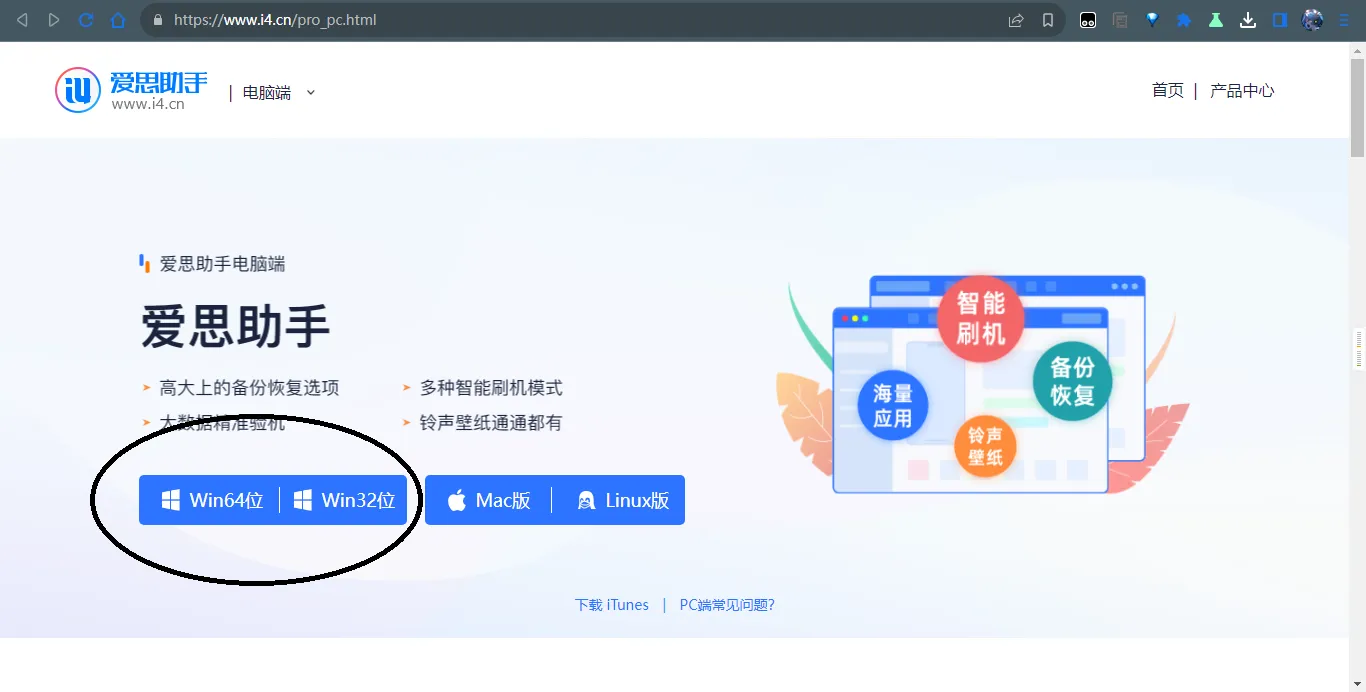
Since we need to back up iOS data, we inevitably think of downloading iTunes. However, i4 Tools (Aisi Assistant) makes backing up iOS much more convenient (it’s essentially a wrapper software using iTunes as its core).
Download either the 32-bit or 64-bit version.
# Opening and Installing the Software
After clicking the program, the installation page appears.
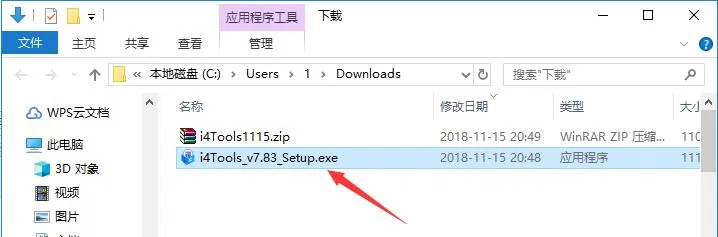
Click “Install” on the installation page.

# Entering the Software
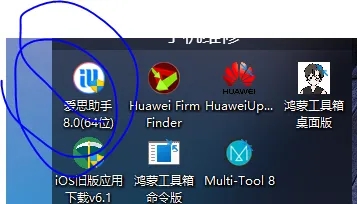
Find the software icon on your desktop.
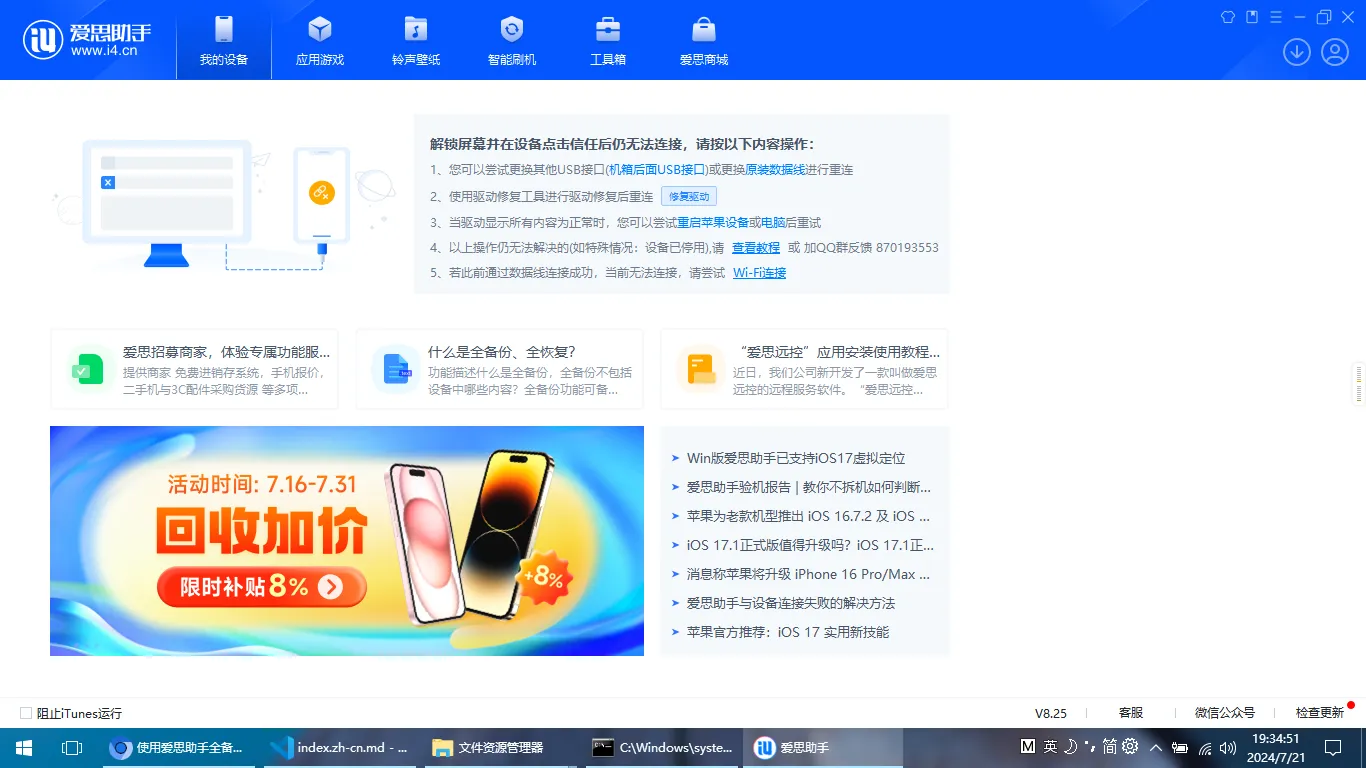
After it finishes installing the necessary drivers, we can successfully enter the interface shown below.
# Connecting the Phone and Trusting the Computer
Use a data cable to connect your phone to the computer.

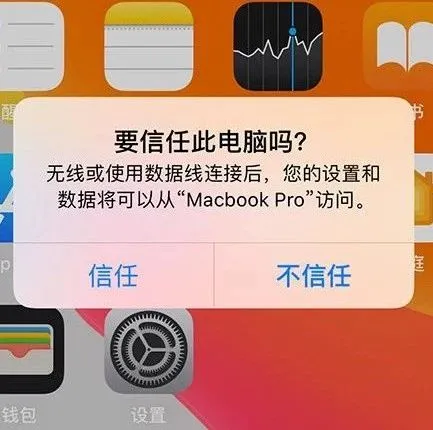
A “Trust” or “Don’t Trust” prompt will appear on your phone.
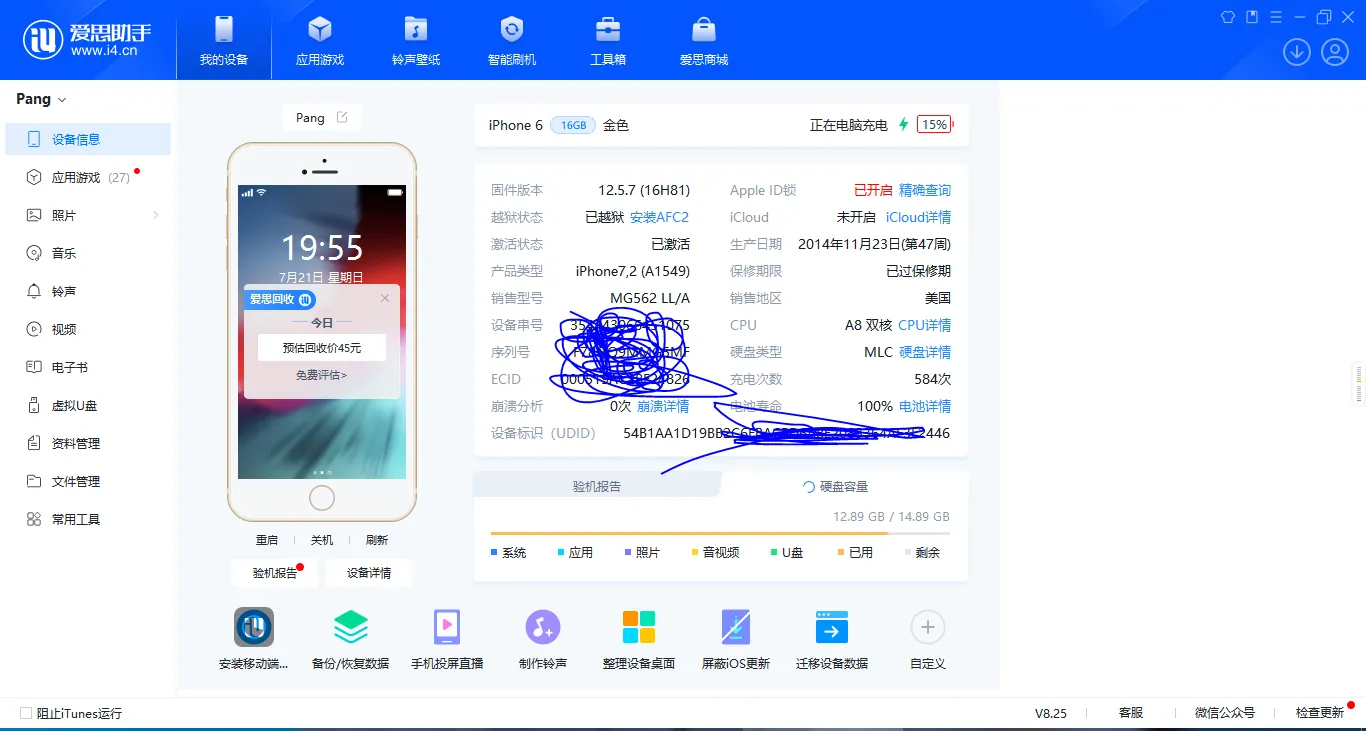
After a successful connection, it will look like this:
# Start Backing Up the Phone
Directly click the Backup/Restore Data button on the home page.
# Full Backup
An iOS full backup refers to copying almost all data and settings from your iPhone or iPad to another location, such as your computer, iCloud, or an external hard drive. Unlike iCloud backups or selective iTunes backups that only save specific data types, a full backup creates a complete snapshot of your device.
A full backup usually includes the following:
- Device settings: Including display brightness, wallpapers, sounds, notifications, Touch ID settings, etc.
- App data: Including the apps themselves, app settings, game progress, login info, etc., but not all apps support data backup.
- Photos and videos: Including Camera Roll, Photo Stream, albums, etc.
- Messages: Including iMessage, SMS, and MMS.
- Call logs: Including outgoing, incoming, and missed calls.
- Contacts: Including all contact information.
- Calendar: Including all calendar events and reminders.
- Notes: Including all notes and attachments.
- Voice Memos: Including all recordings.
- Health data: Including steps, heart rate, sleep data, etc.
- Safari browser data: Including bookmarks, history, cookies, etc.
- Keychain data: Including Wi-Fi passwords, website login info, etc.
Please note that a full backup does NOT include the following:
- Downloaded music, movies, and TV shows: These are usually copyright-protected and need to be re-downloaded from the iTunes Store, App Store, or other sources.
- Data stored in iCloud: This data is already in the cloud and does not need to be included in the local backup.
- Face ID or Touch ID data: For security reasons, this data is not backed up.
- Apple Pay information: For security reasons, this is not backed up.
Pros of a full backup:
- Comprehensive data protection: Backs up almost all data on the device.
- Easy restoration: Can be used to restore the device to its previous state.
- Convenient data migration: Can be used to transfer data to a new device.
Cons of a full backup:
- Large file size: Requires a lot of storage space.
- Longer backup time: Takes more time to complete.
# Operation Steps
There is a difference in content between unencrypted and encrypted backups:
Please note that the content included in an unencrypted backup and an encrypted backup varies. An encrypted backup may contain information not found in an unencrypted backup, including: your saved passwords, Wi-Fi settings, website history, Health data, and call history.
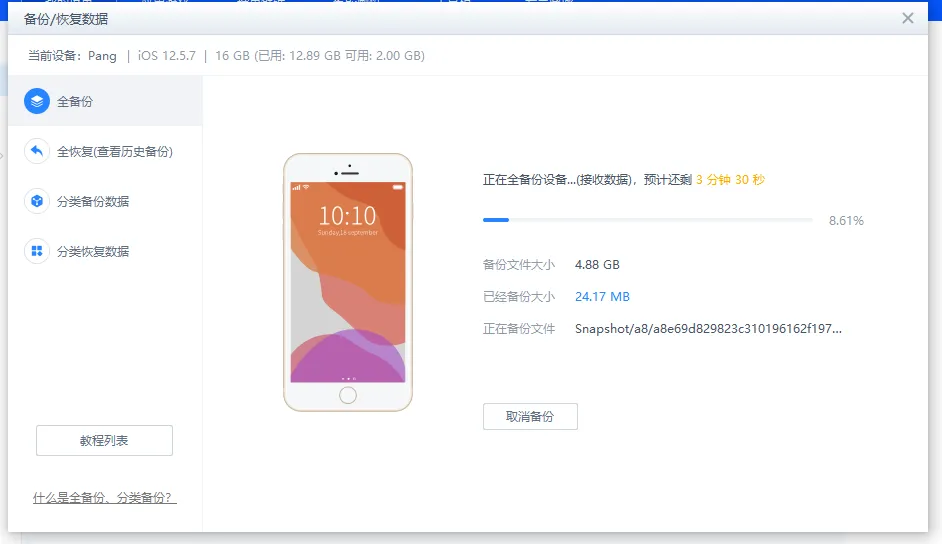
Directly click “Backup Now” (立即备份).
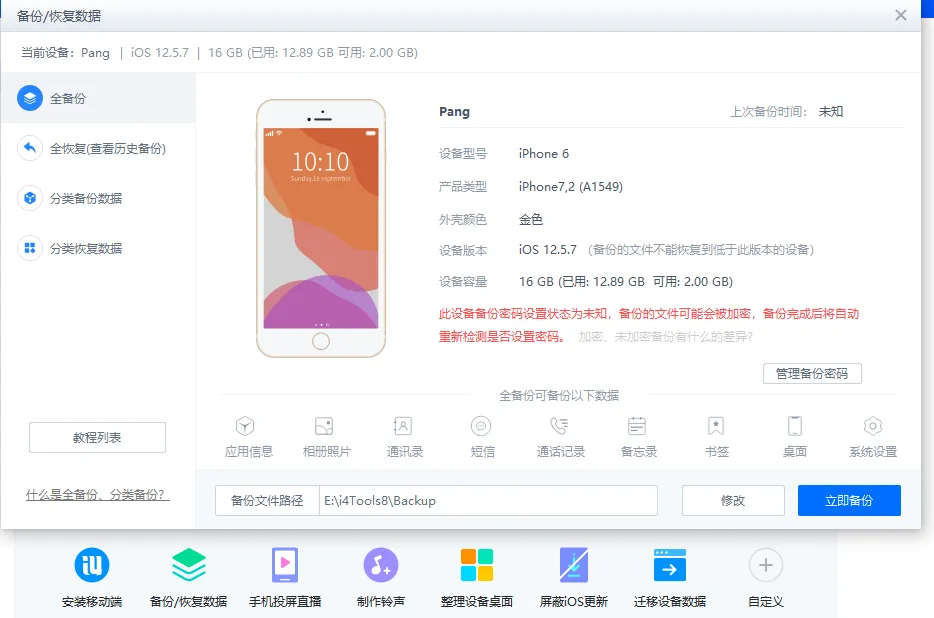
The backup process begins.
# The Difference Between Password-Protected and Unprotected Full Backups

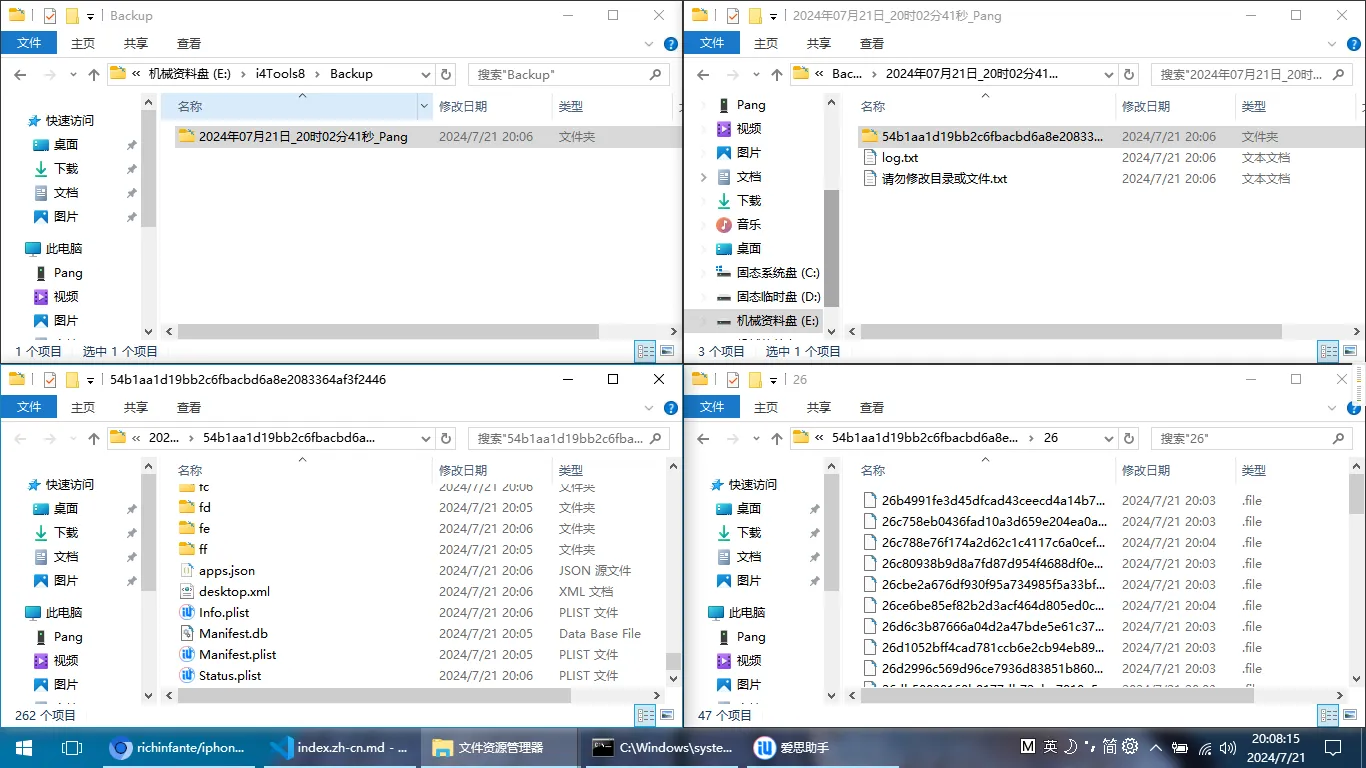
# Full Backup Data is Encrypted
You will notice that the full backup files are encrypted by default.
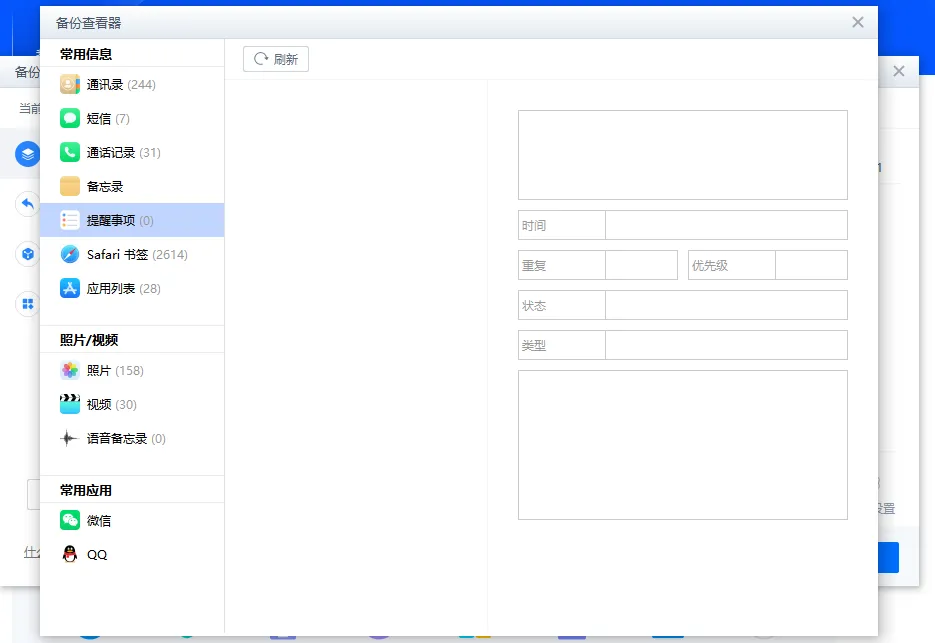
This is what it looks like when viewed through i4 Tools’ built-in viewer.
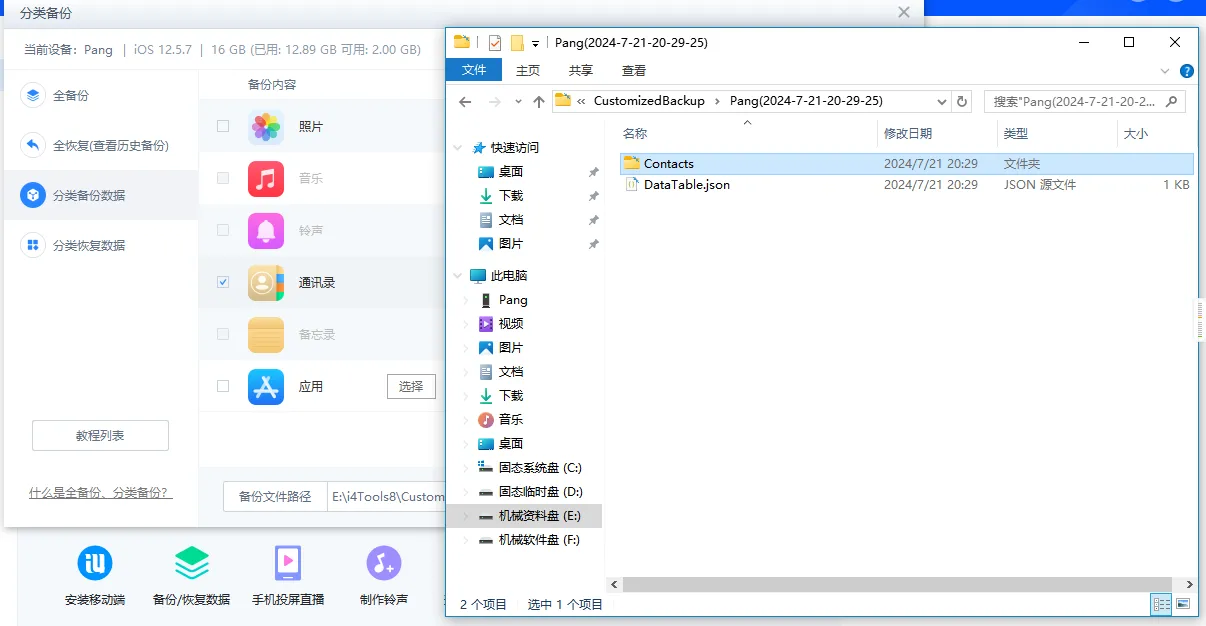
# Selective Backup (Customized Backup)
With this type of backup, you can freely select the specific data you need, except you cannot back up in-app data.
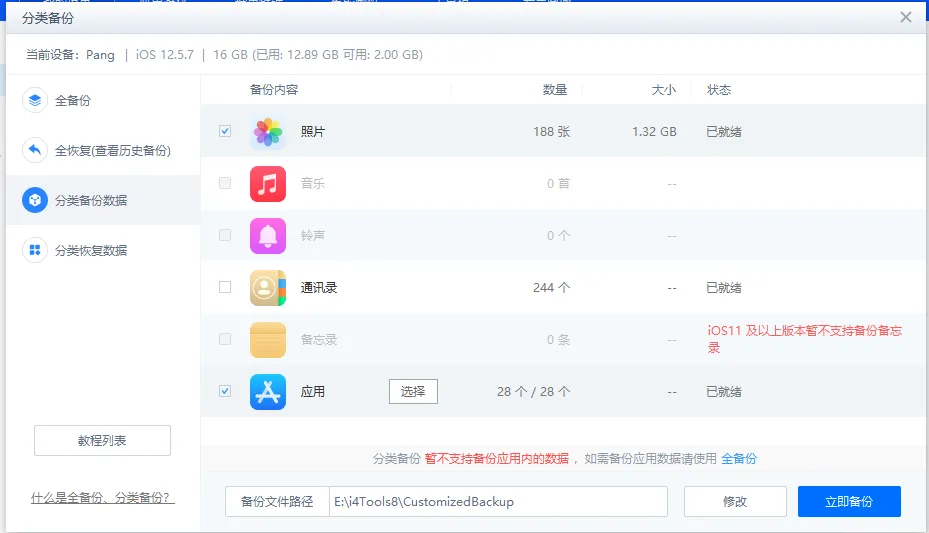
The main difference is that data backed up this way is not encrypted.
# Important Notes
The full backup file is generally best suited for the current device. If you switch to a different phone model, there is no guarantee that everything will work perfectly upon restoration.
Some app data may become invalid or corrupted, such as WeChat and QQ.
It is highly recommended to use the official built-in backup features for WeChat and QQ to migrate your chat history.