Table of contents
# How to Start and Download Minecraft (HMCL Launcher Tutorial)
TL;DR / Geek Summary:
- Cross-platform deployment guide for HMCL, a Java-based open-source launcher supporting multi-OS environments.
- Versioning strategy: Breakdown of MC versions from legacy 1.7.10 to modern 1.21.1, tailored for hardware constraints and modding requirements.
- Legacy hardware hack: Detailed fix for OpenGL/driver conflicts using specific Java 8u51 builds for older GPUs.
# How to Start and Download Minecraft (HMCL Launcher Tutorial)
(JAVA Edition Only) Beginners who are new to the game and don’t know how to start or download Minecraft can follow this tutorial.
# Usage and Download of HMCL
HMCL is an open-source Minecraft launcher that uses JAVA as its runtime environment, allowing it to run alongside MC. As long as you have JAVA, you can use HMCL. Therefore, HMCL exists on mobile devices, Linux, Windows, and macOS, and even on Deepin and Ubuntu.
# Step 1: Download
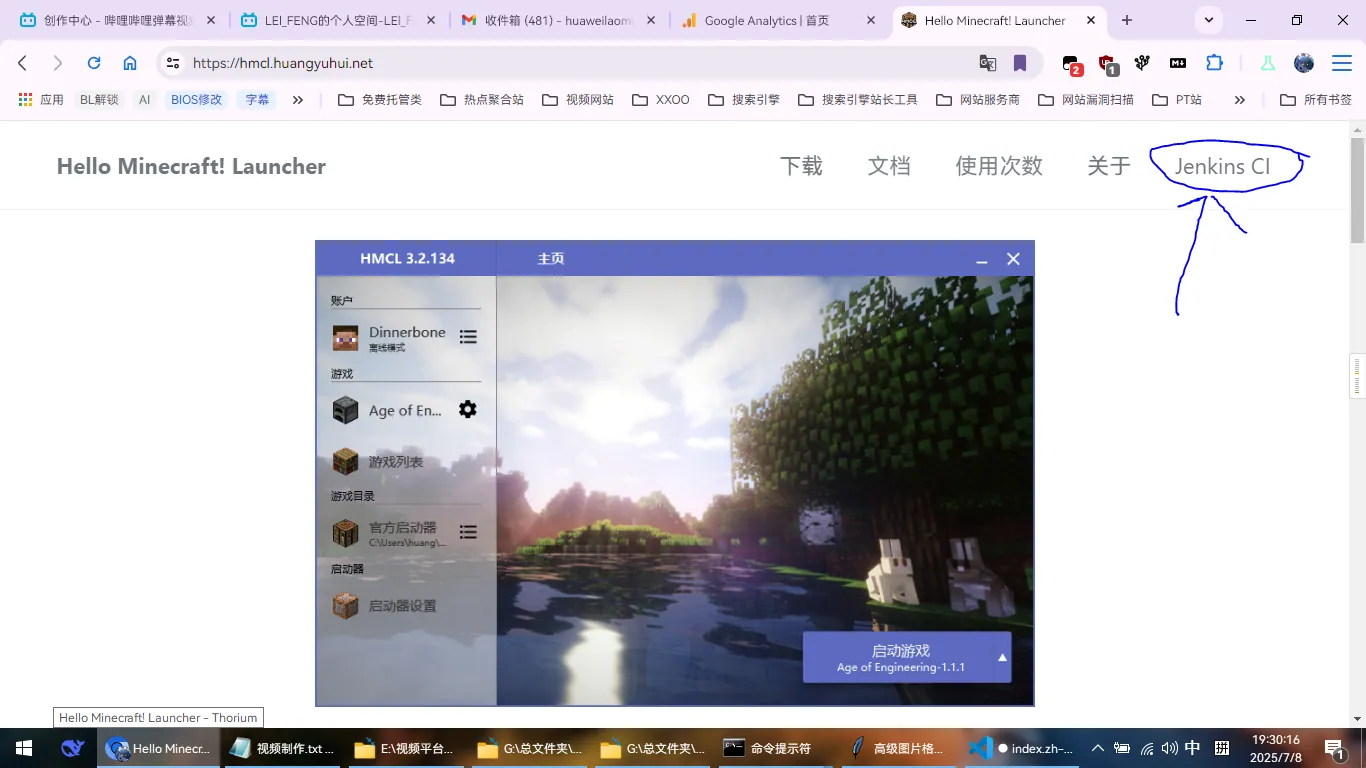
First, go to the official website to download the HMCL launcher. Official website: https://hmcl.huangyuhui.net/ . Just download the latest version.
Click where the blue circle points:
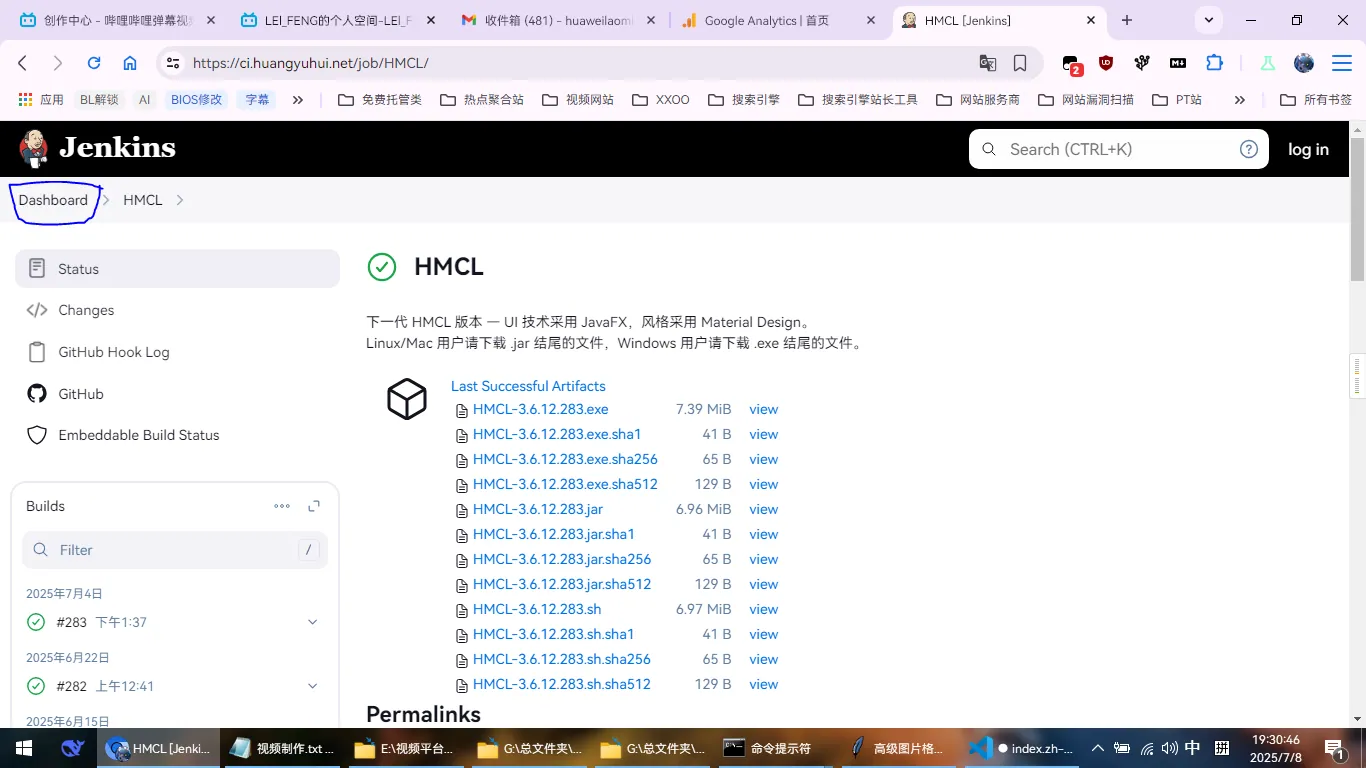
Then click here to return to the home page:
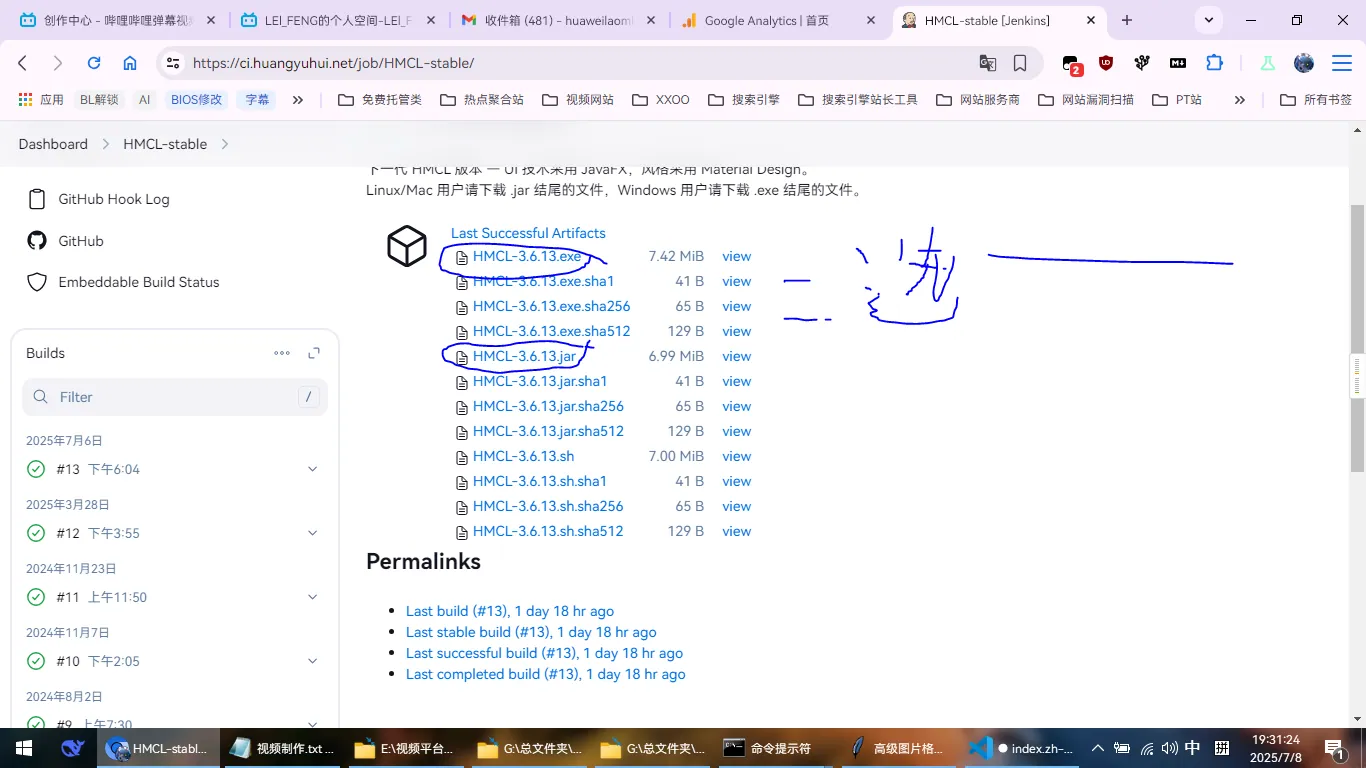
Click here to see the release builds:
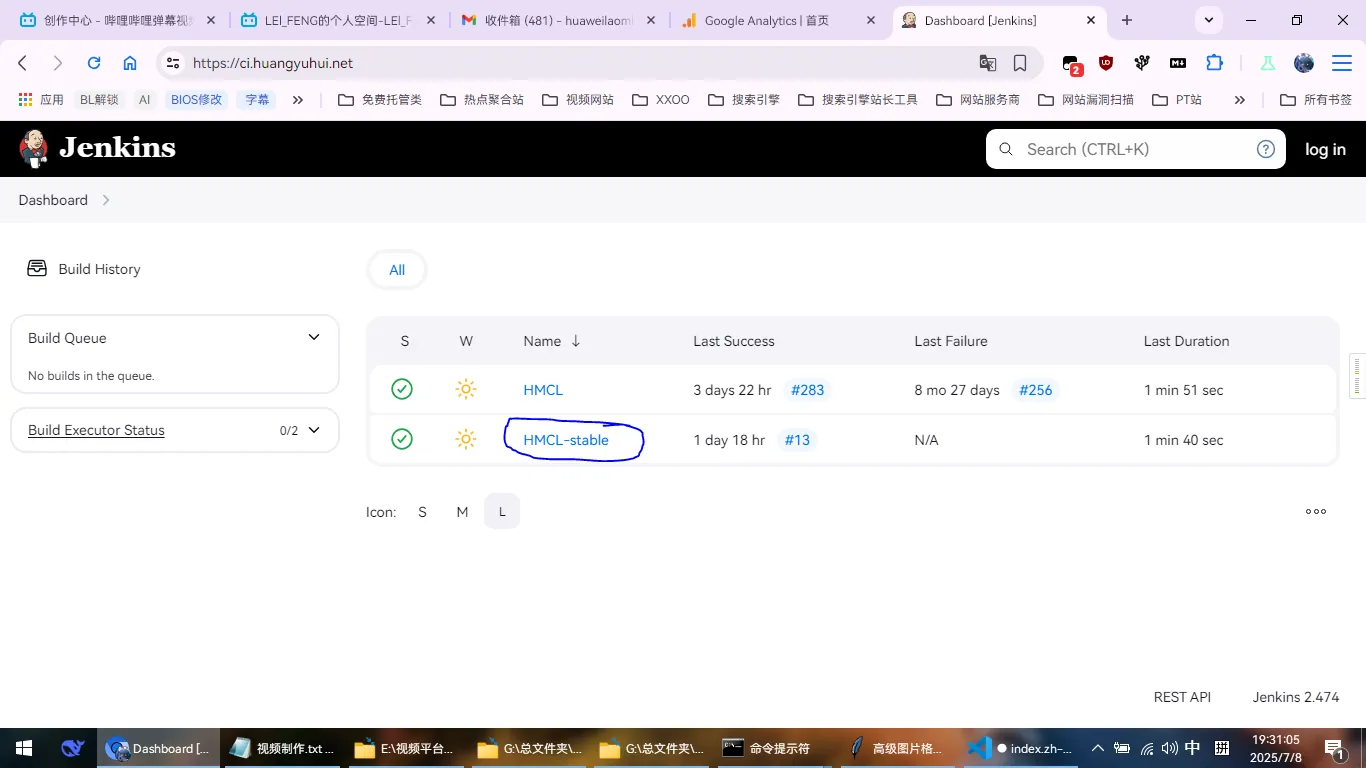
Prefer downloading the EXE; if that fails, download the Jar:
# Step 2: Put the file into a folder
This step is to prevent folder clutter. It is recommended to create a new folder to place the HMCL launcher and related files.
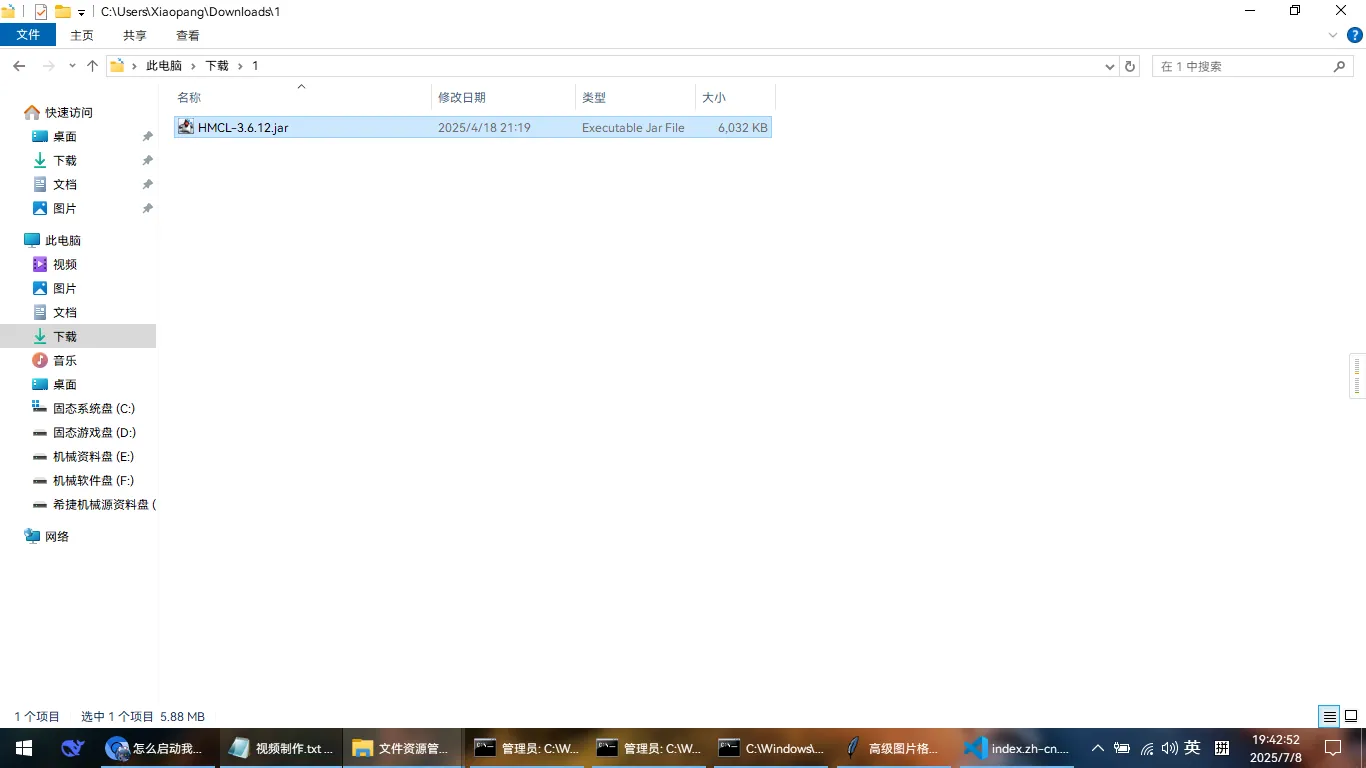
Once done, open the launcher.
# Step 3: Start HMCL
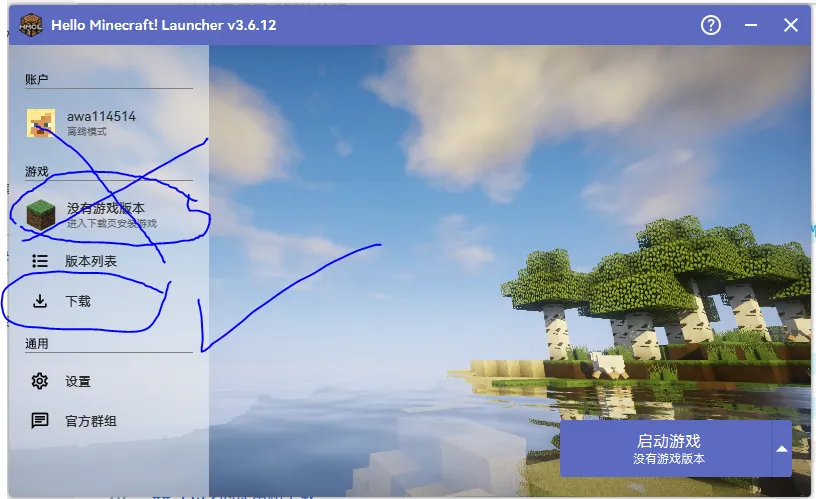
After opening HMCL, an interface will appear. Enter the download page to install a new game.
# Step 4: Download the game
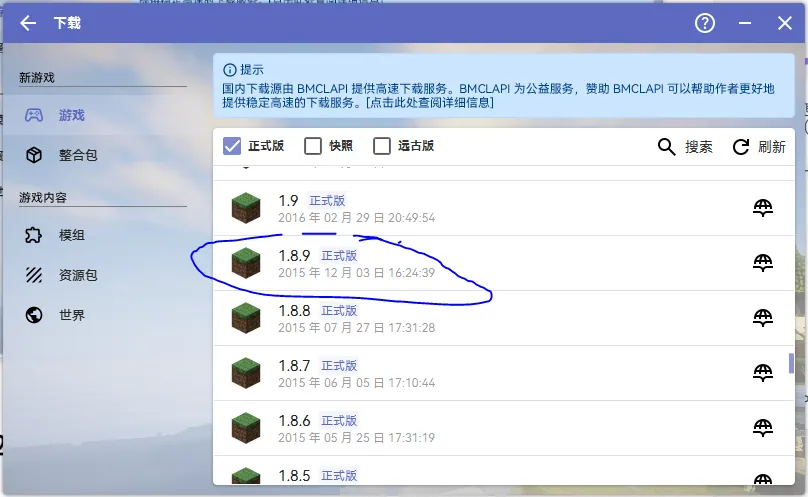
Select the version you need.
| Version | Description | Recommendation |
|---|---|---|
| 1.7.10 | Not very smooth, laggy; requires many MODs to fix and make it usable. | Old PCs stand up! |
| 1.8.9 | Relatively well-optimized with many helper tools available. | Hackers stand up! |
| 1.12.2 | Suitable for Crystal PVP and 1.9 PVP. | Has attack cooldown but smoother than 1.8.9; many Crystal clients available. |
| 1.16.5 | Last version to support JAVA 8 and OpenGL 2.0. | Suitable for old machines. |
| 1.18.2 | Includes Cave & Cliffs update; many fun mods and helper tools. | Good for modded play. |
| 1.21.1 | Current mainstream version for 2B2T; many helper tools. | New players stand up! |
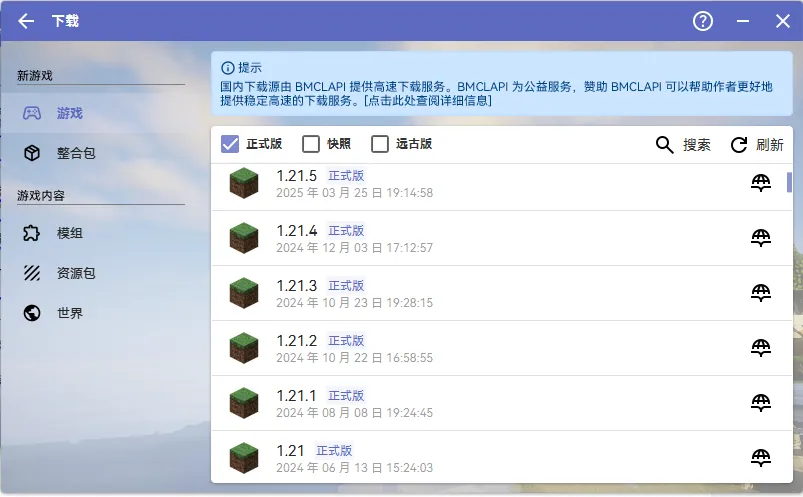
After finding 1.8.9, click on it to enter the next page.
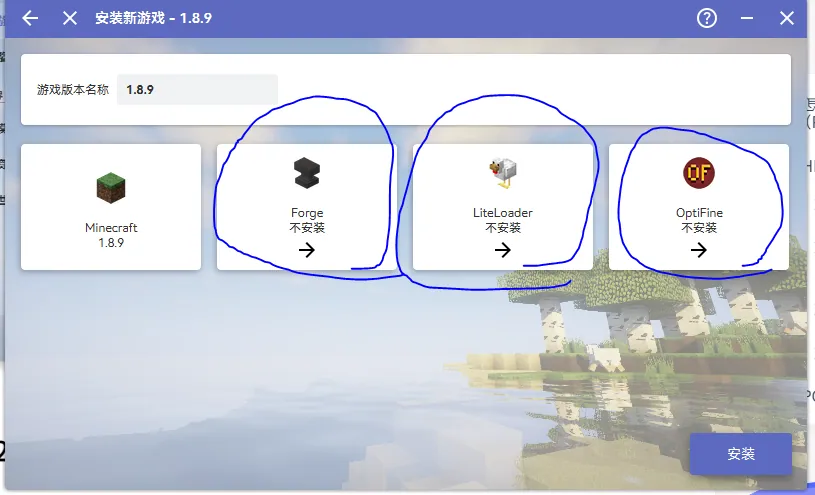
Choose a mod loader based on the mods you want to play. If you prefer the pure vanilla version, just click install without selecting a mod loader.
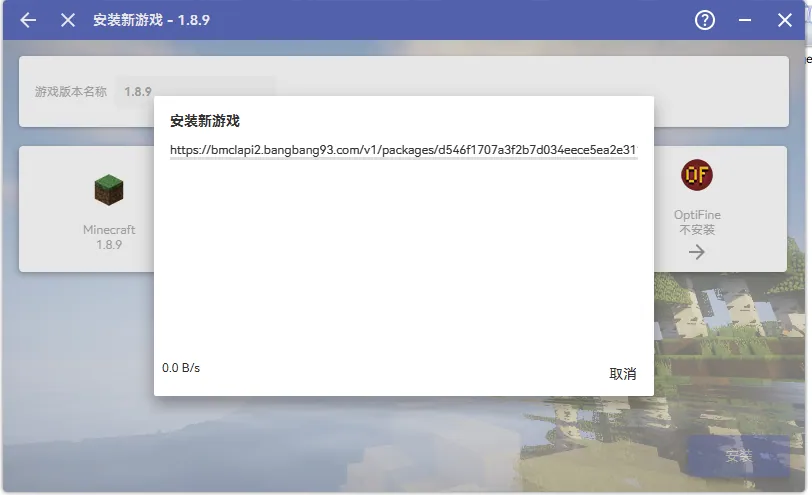
Download starts!
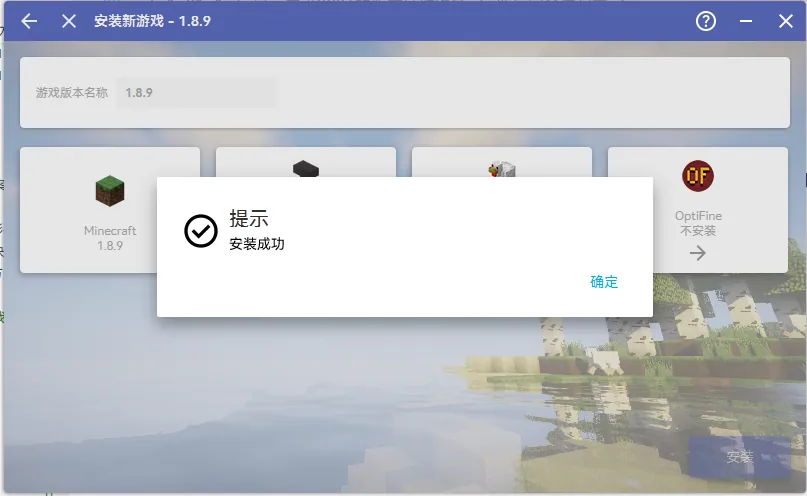
Installation successful!
# Start!
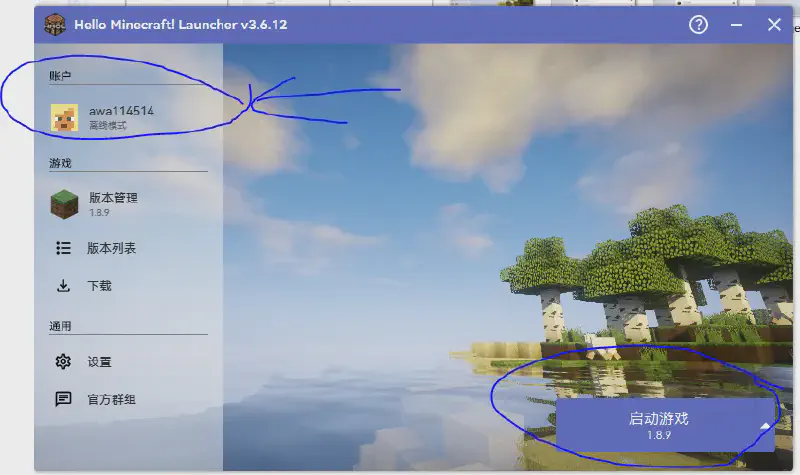
Before starting, ensure you have an account. You can log in with a genuine account or use offline mode.
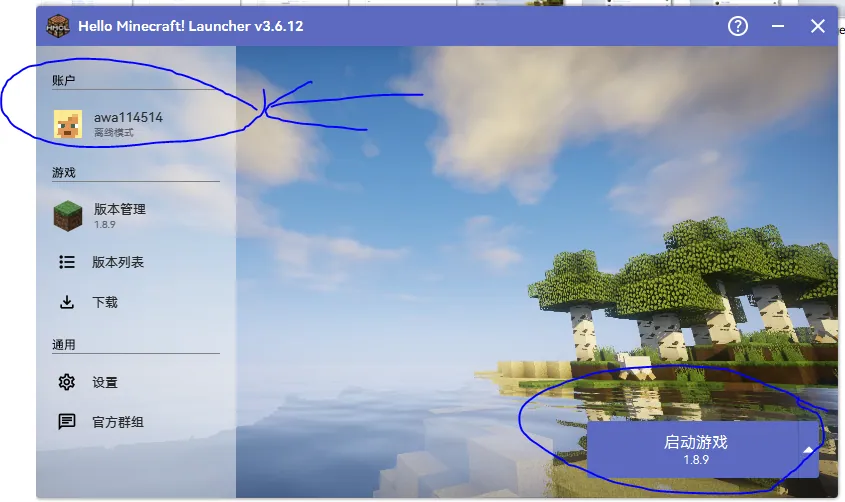
Assuming you have already added an account:
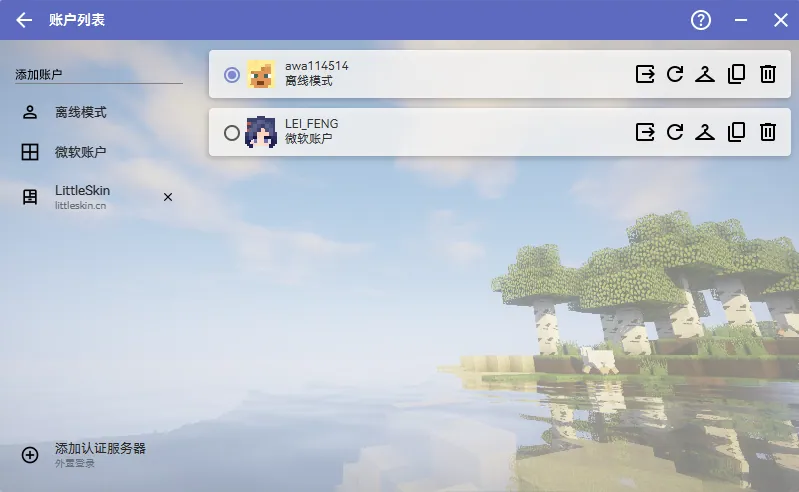
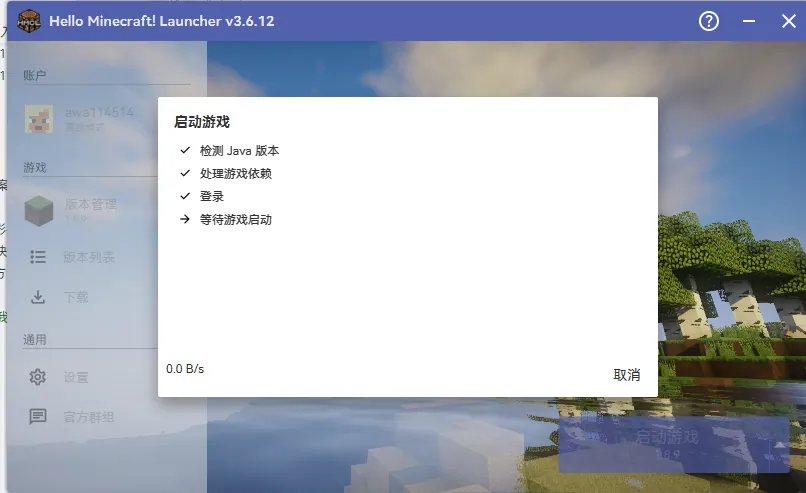
Start!
# Error Handling for Old Graphics Cards and New JAVA
Failed?
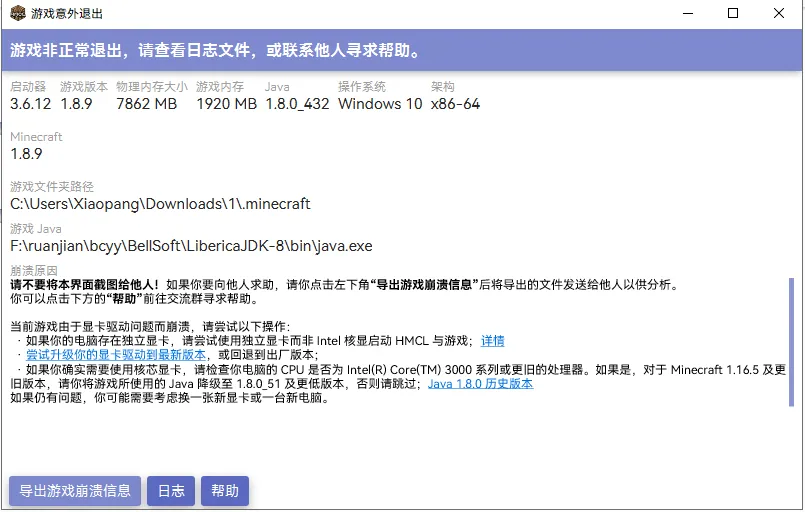
The computer’s graphics card is too old to start with the latest JAVA 8. Switch to the 51u version of JAVA. Currently, it can only be downloaded from GitHub; I’ll make a mirror site when I have time, haha.
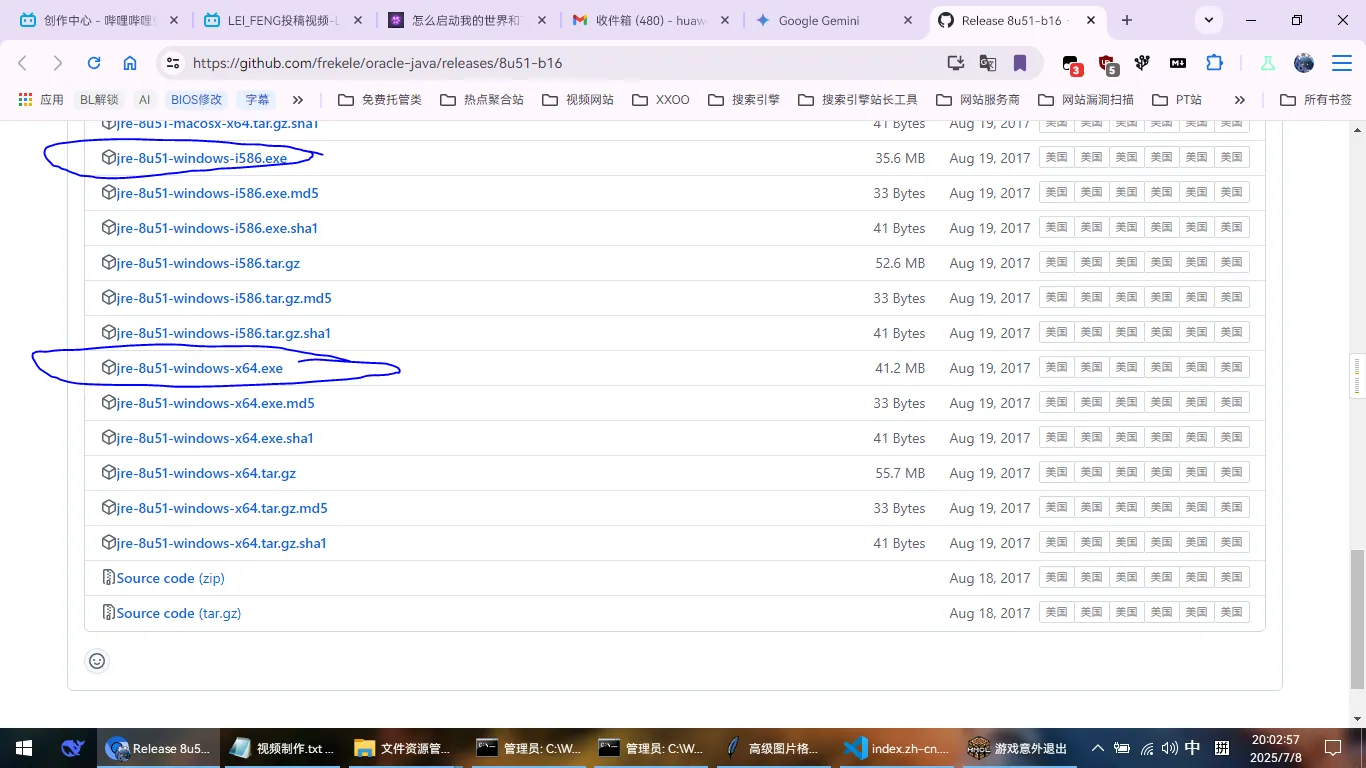
After selecting your system version, if the X64 download won’t open, use the I586 version.
Okay, assuming you have finished the installation, let’s select the JAVA version.
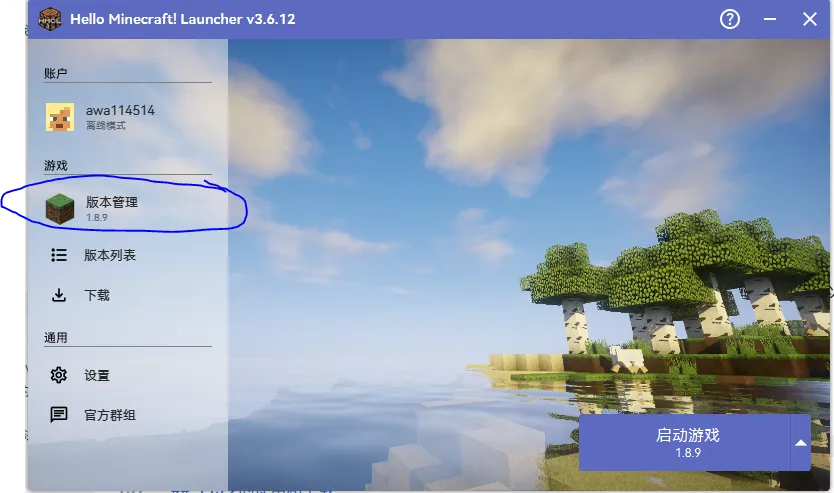
Click on the “Java” section:
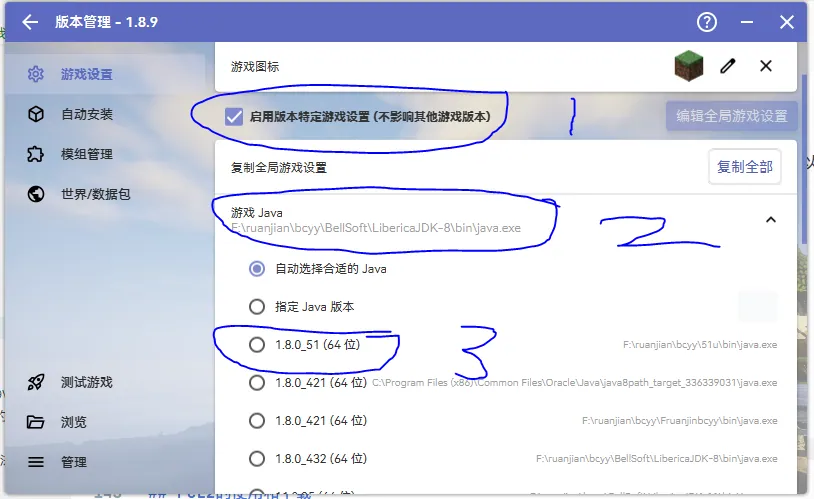
Select the 51u version.
Congratulations! You have successfully learned how to use the HMCL launcher to download and start Minecraft.
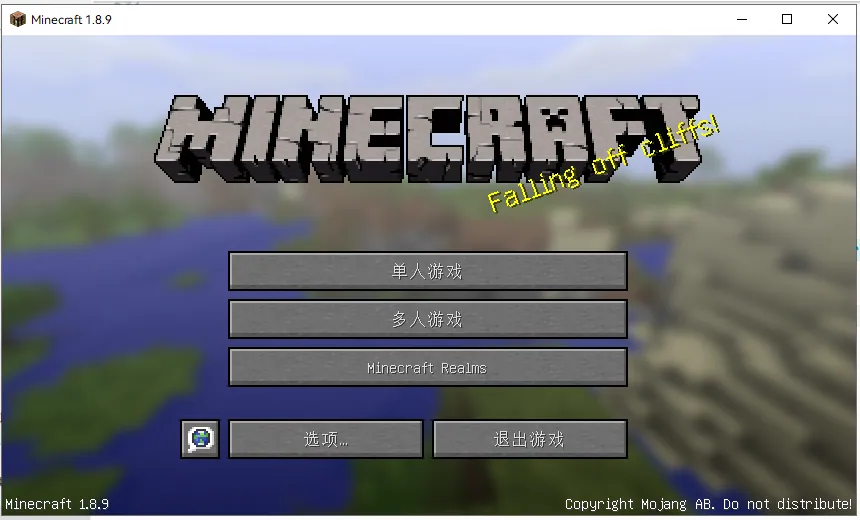
In the next issue, we will cover the usage and download of the PCL2 launcher.